


Begin scheduling work orders in 5 easy steps
In this post

1
2
3
MEX CMMS simplifies work order scheduling with an intuitive drag-and-drop scheduler built into the Work Orders Module. Users can assign jobs, track progress, and balance workloads to keep maintenance running efficiently and on time.
Scheduling tasks has never been easier. MEX has now incorporated a powerful but easy to use scheduler as part of the Work Orders Module.
To simplify the set up process, the scheduler comes with its very own wizard that will guide you through the setup of your work orders schedule.Just follow the 5 easy steps and get on your way to easy maintenance scheduling.
Using the wizard
To begin with, open up the Work Order Listing and open the Scheduler by clicking the Scheduler button
Work%20Order%20Listing.png
If this is the first time you have run the Work Order Scheduler MEX will start the work order scheduler wizard
Steps:
As this is deemed to be the first time you have opened the scheduler, click next to begin
Wizard%20Step%201.png
You have two options at this stage. Either schedule for a week at a time or create a schedule for each day of the working week.
Wizard%20Step%202.png
The next task is to nominate the specific day that your work week officially starts and the number of working days in that week
Wizard%20Step%203.png
Next we define the Work Order Duration. This is where the user will define the average amount of time a general work order will take to complete. This will help the scheduler calculate specific slots in the allocated working hours based on what hours you have selected to work within.
Wizard%20Step%204.png
In step 4 you will need to define the number of available man hours that your maintenance personnel are able to perform work and of these hours how many are available for scheduling.
Wizard%20Step%205.png
In the next step we define the priority allocation. As all Work Orders are sorted in the scheduler by their priority, the resource scheduler wizard gives users the option to define the number of work orders in each priority to schedule. This flexibility allows the user to really narrow down on important jobs regardless of their priority and easily work out convenient times to carry out the work.
Wizard%20Step%206.png
Once you have gone through all the five steps. A schedule with buckets containing the working days and allocated hours can be populated and work can then be pushed out to the tradesmen to carry out in line with the scheduler.
Schedule%20Builder.png
It's as easy as that, Happy scheduling!
- An easy-to-use scheduling wizard that streamlines planning, making it simple for teams to manage preventive maintenance and balance workloads efficiently.
- View assignments, priorities, and technician hours in real time; improving asset maintenance management and ensuring tasks are completed on time.
- Optimise technician efficiency, minimise downtime, and enhance facility and asset management by streamlining task allocation and eliminating scheduling conflicts.

Download your whitepaper now
You’re all set!
Your eBook is on its way to your inbox. We hope it brings fresh insights and practical takeaways to help you get more from your maintenance operations.




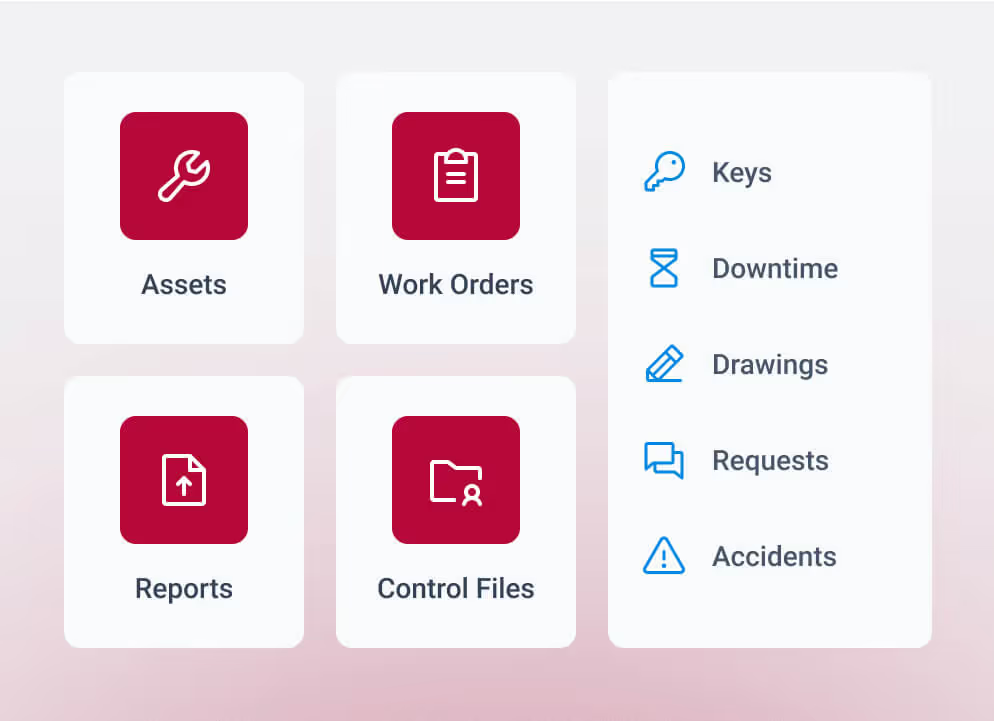

Scheduling tasks has never been easier. MEX has now incorporated a powerful but easy to use scheduler as part of the Work Orders Module.
To simplify the set up process, the scheduler comes with its very own wizard that will guide you through the setup of your work orders schedule.Just follow the 5 easy steps and get on your way to easy maintenance scheduling.
Using the wizard
To begin with, open up the Work Order Listing and open the Scheduler by clicking the Scheduler button
Work%20Order%20Listing.png
If this is the first time you have run the Work Order Scheduler MEX will start the work order scheduler wizard
Steps:
As this is deemed to be the first time you have opened the scheduler, click next to begin
Wizard%20Step%201.png
You have two options at this stage. Either schedule for a week at a time or create a schedule for each day of the working week.
Wizard%20Step%202.png
The next task is to nominate the specific day that your work week officially starts and the number of working days in that week
Wizard%20Step%203.png
Next we define the Work Order Duration. This is where the user will define the average amount of time a general work order will take to complete. This will help the scheduler calculate specific slots in the allocated working hours based on what hours you have selected to work within.
Wizard%20Step%204.png
In step 4 you will need to define the number of available man hours that your maintenance personnel are able to perform work and of these hours how many are available for scheduling.
Wizard%20Step%205.png
In the next step we define the priority allocation. As all Work Orders are sorted in the scheduler by their priority, the resource scheduler wizard gives users the option to define the number of work orders in each priority to schedule. This flexibility allows the user to really narrow down on important jobs regardless of their priority and easily work out convenient times to carry out the work.
Wizard%20Step%206.png
Once you have gone through all the five steps. A schedule with buckets containing the working days and allocated hours can be populated and work can then be pushed out to the tradesmen to carry out in line with the scheduler.
Schedule%20Builder.png
It's as easy as that, Happy scheduling!


Related resources
You’ve seen what’s possible—connect with us to learn how TMA Systems can support your goals beyond the event.
You’ve read the insights, now see how TMA Systems helps teams put them into practice.
From ideas to impact
You’ve read the insights, now see how TMA Systems helps teams put them into practice.
From screen to solution
You’ve watched what’s possible, now see how TMA Systems works for your organization.
From insight to implementation
You’ve explored the strategies, now see how we can bring them to life across your real facilities.